Webflow Integration
Connect your Webflow account to publish content generated in Asky directly to your Webflow CMS collections.
What You Get
Connecting Webflow enables:
| Feature | Description |
|---|---|
| Content Publishing | Publish articles and posts to Webflow CMS |
| Collection Mapping | Map Asky content to Webflow collection fields |
| Status Tracking | Monitor publishing status in Asky |
| Site Selection | Choose which Webflow site to publish to |
Prerequisites
Before connecting, ensure you have:
- A Webflow account
- At least one site with CMS capability (not on free plan)
- A CMS collection set up for blog posts or articles
- Editor or Admin access to the site
- (Recommended) A plain-text field named Asky Schema on your target collection. See Schema.org Structured Data Setup below.
Webflow’s free plan doesn’t include CMS. You’ll need a CMS Site Plan or higher to use this integration.
Connecting Webflow
Navigate to Connections
Go to Settings → Connections in Asky.
Find Webflow
Locate the Webflow card.
Click Connect
Click the Connect button.
Authorize with Webflow
You’ll be redirected to Webflow:
- Sign in to your Webflow account (if not already)
- Review the permissions requested
- Click Authorize
Select Your Site
If you have multiple Webflow sites:
- You’ll see a list of available sites
- Select the site you want to publish to
- Click Confirm
Choose Your Collection
Select the CMS collection where content will be published:
- You’ll see available collections
- Choose the appropriate collection (e.g., “Blog Posts”, “Articles”)
- Map Asky fields to collection fields (if needed)
Complete Setup
You’ll be redirected back to Asky with Webflow connected.
Schema.org Structured Data Setup
Asky generates JSON-LD structured data for every draft and sends it to a CMS field called asky-schema on publish. For this schema to actually render as a <script type="application/ld+json"> tag on your live page, Webflow needs two things: a plain-text field to store the JSON, and an Embed element on the Collection Template that reads that field.
This is a one-time setup per collection. After completing it, every future publish from Asky automatically includes structured data on the live page.
Structured data helps AI search engines (ChatGPT, Perplexity, Gemini, Claude) understand and cite your page correctly, Asky ensures your articles are optimally prepared. Without this setup, content publishing still works, but your pages render no JSON-LD and miss the added AEO benefit.
Open your collection’s settings
- In the Webflow Designer, open the CMS panel (database icon in the left sidebar)
- Click the collection that holds your blog posts or articles (the same collection you selected when connecting Asky)
- Click the Settings gear to edit the collection structure
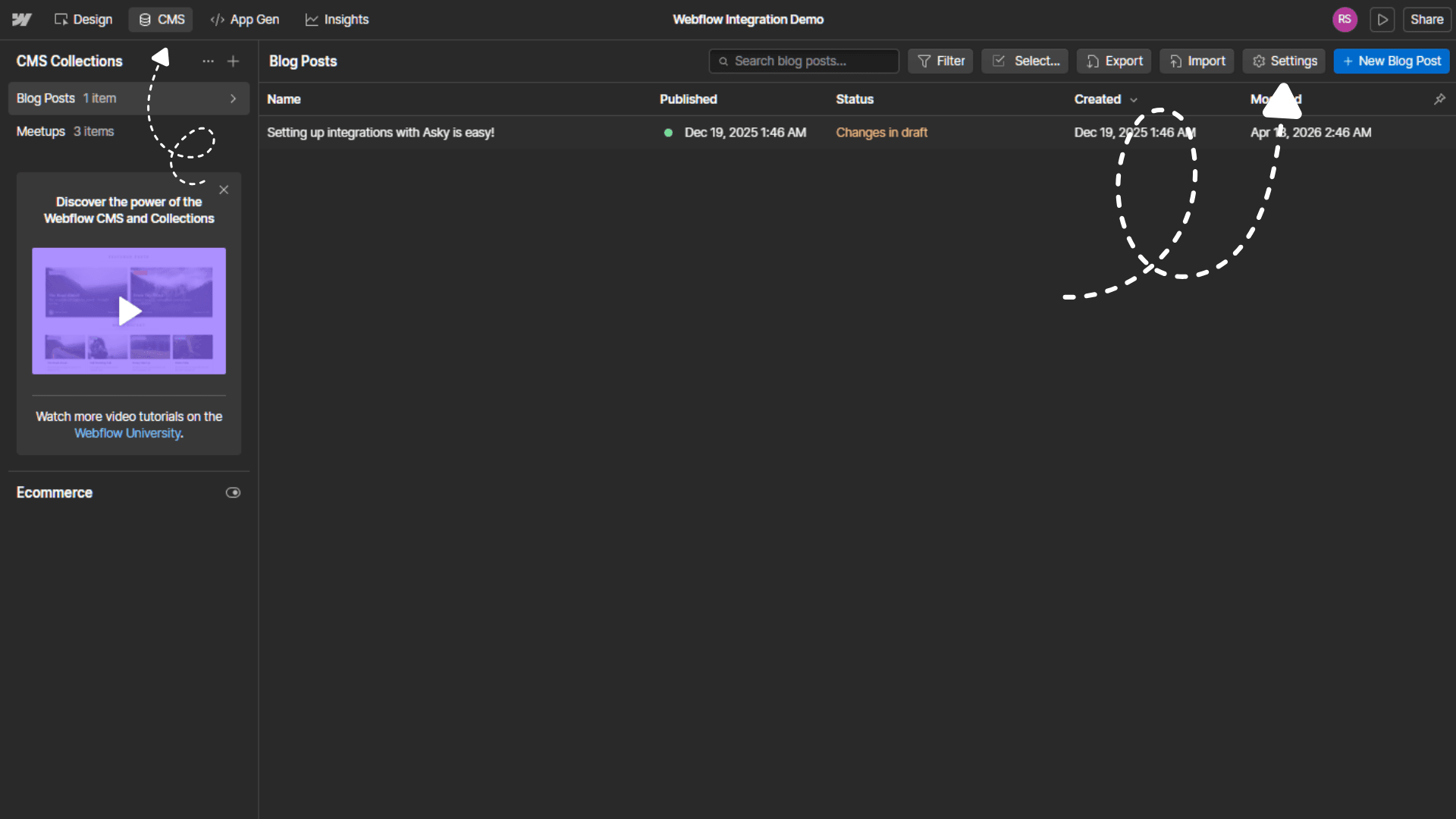
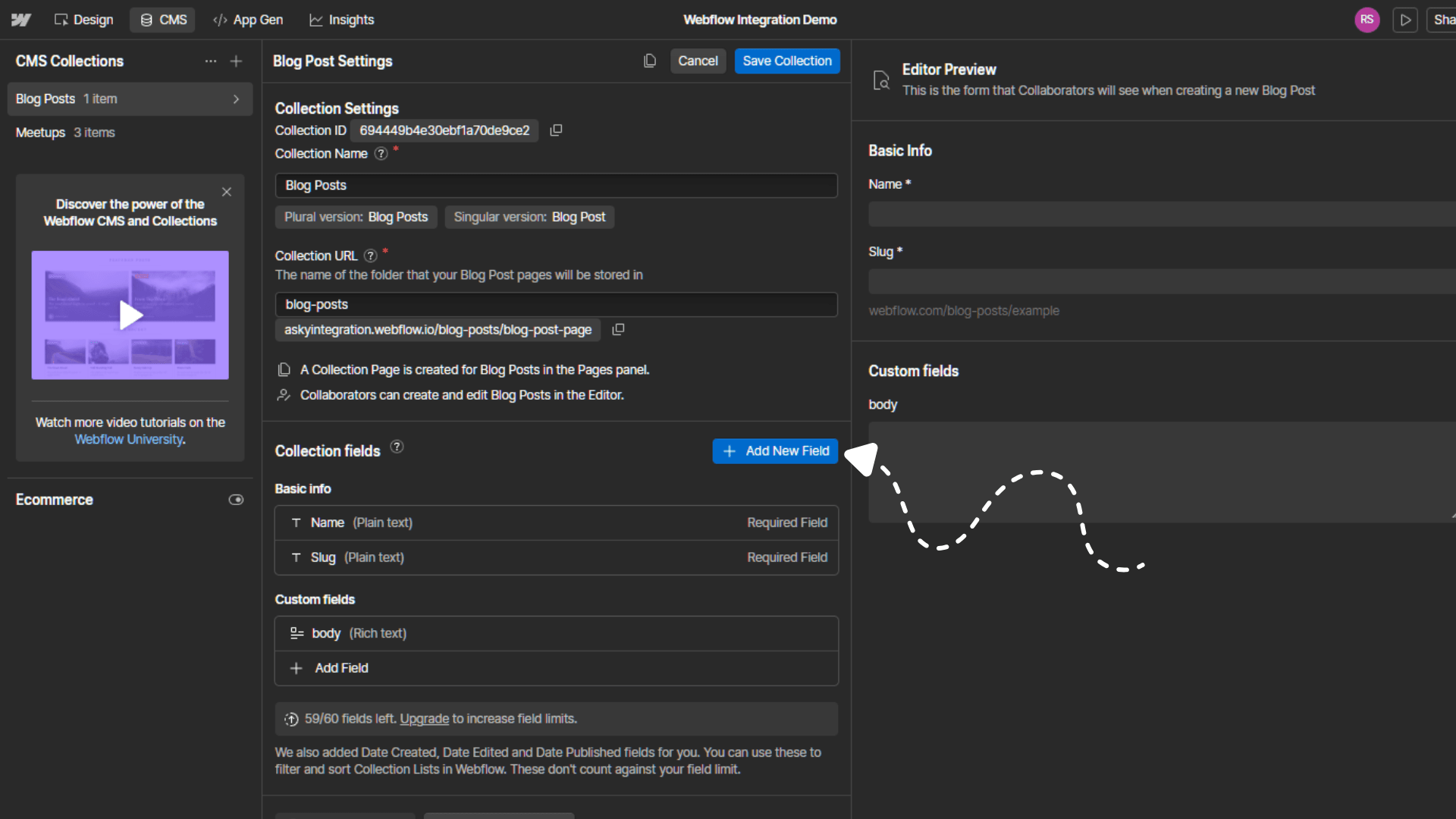
Add a Plain Text (multi-line) field
- Click Add Field
- Select field type: Plain Text
- Select Multiple line
- Field label:
Asky Schema(Webflow will auto-generate the slugasky-schema) - Leave Required off. If a draft has no schema, the publish still succeeds.
- Click Save Field
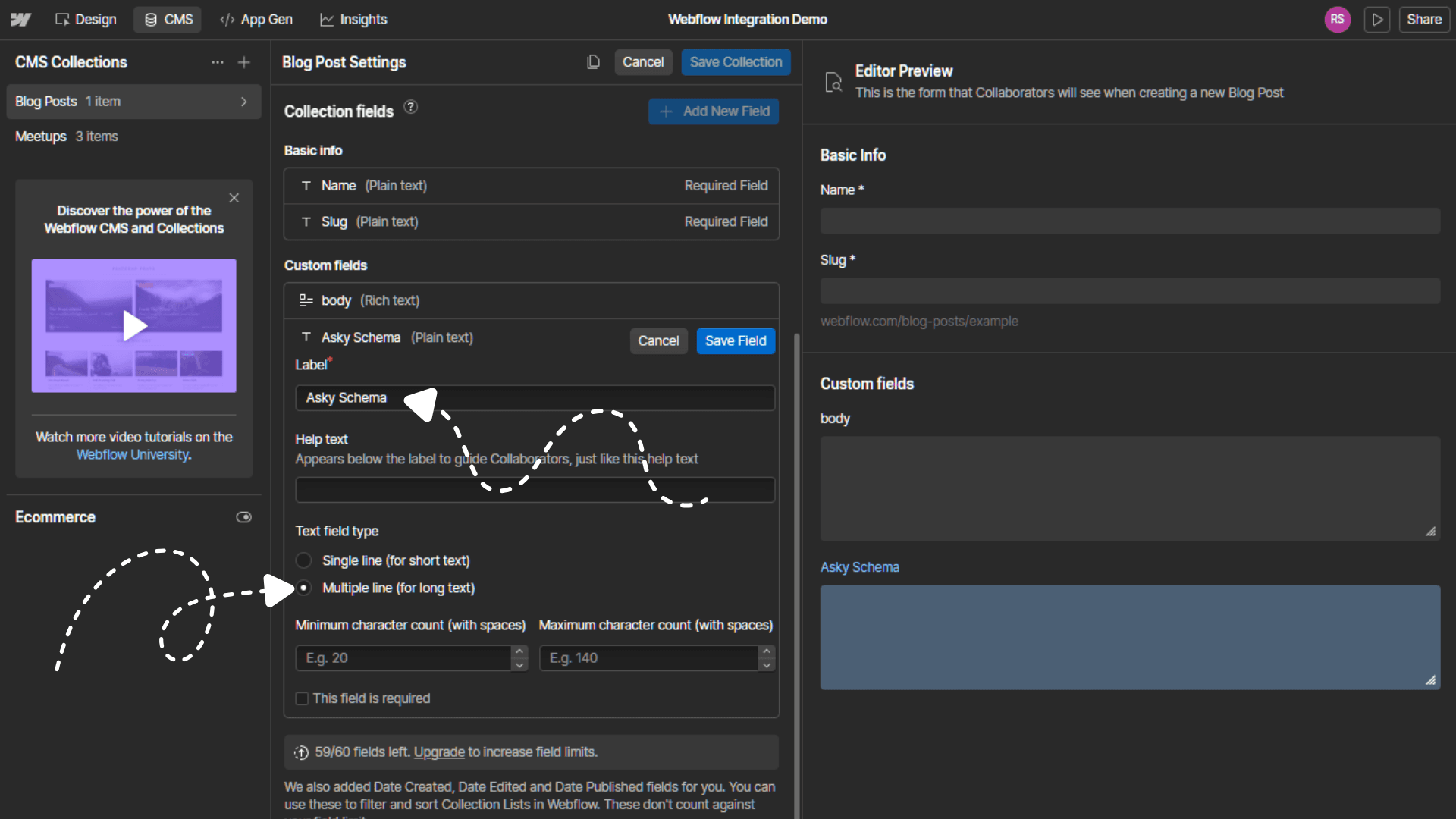
The slug must be exactly asky-schema. Webflow generates the slug automatically from the label “Asky Schema”, so typing the label that way gives you the right slug. Before continuing, open the field’s settings and double-check that the slug reads asky-schema.
Open the Collection Template page
- In the Designer, open the Pages panel (left sidebar)
- Under CMS Collection Pages, open the template for your collection (for example
Blog Post Template)
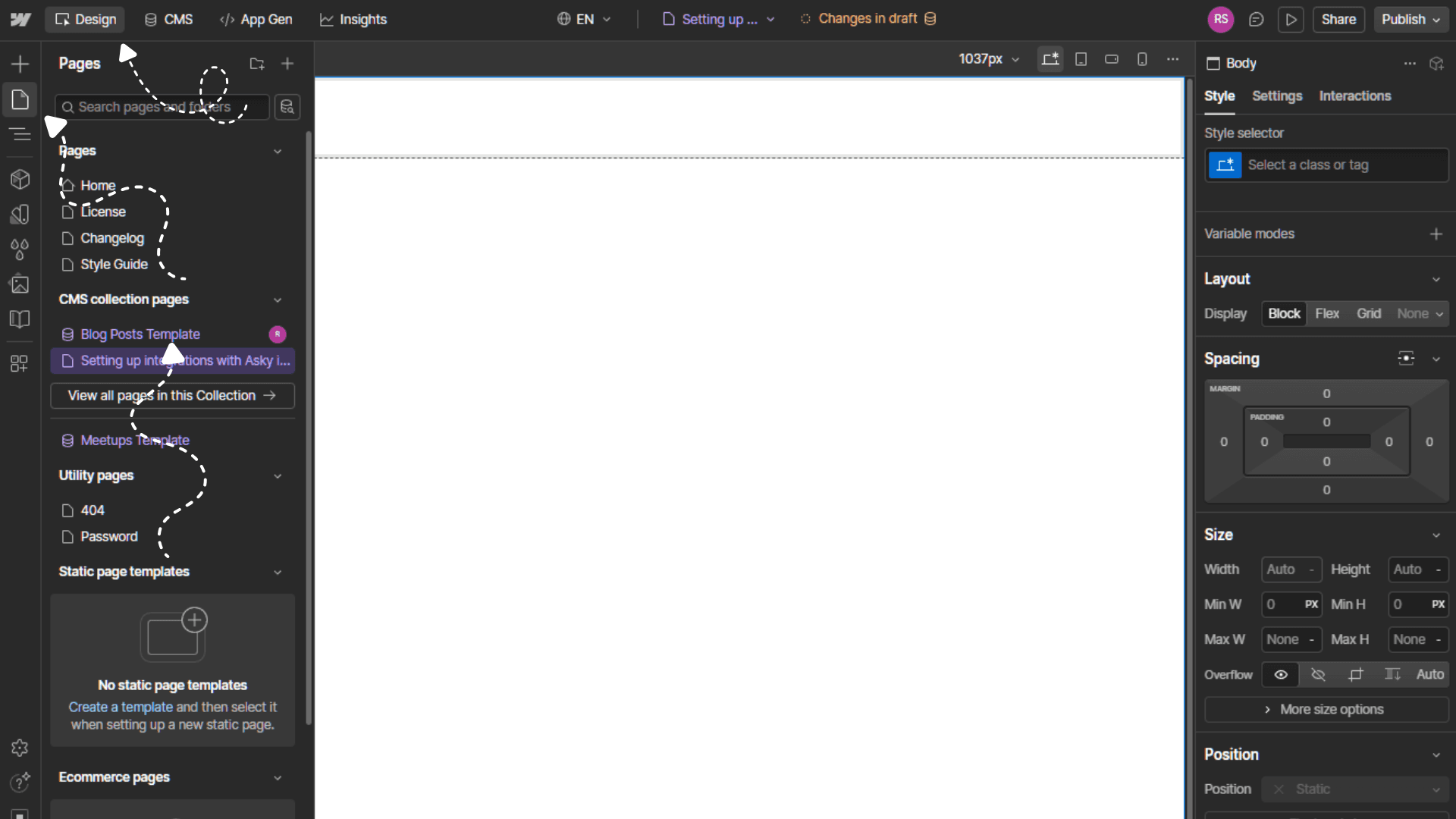
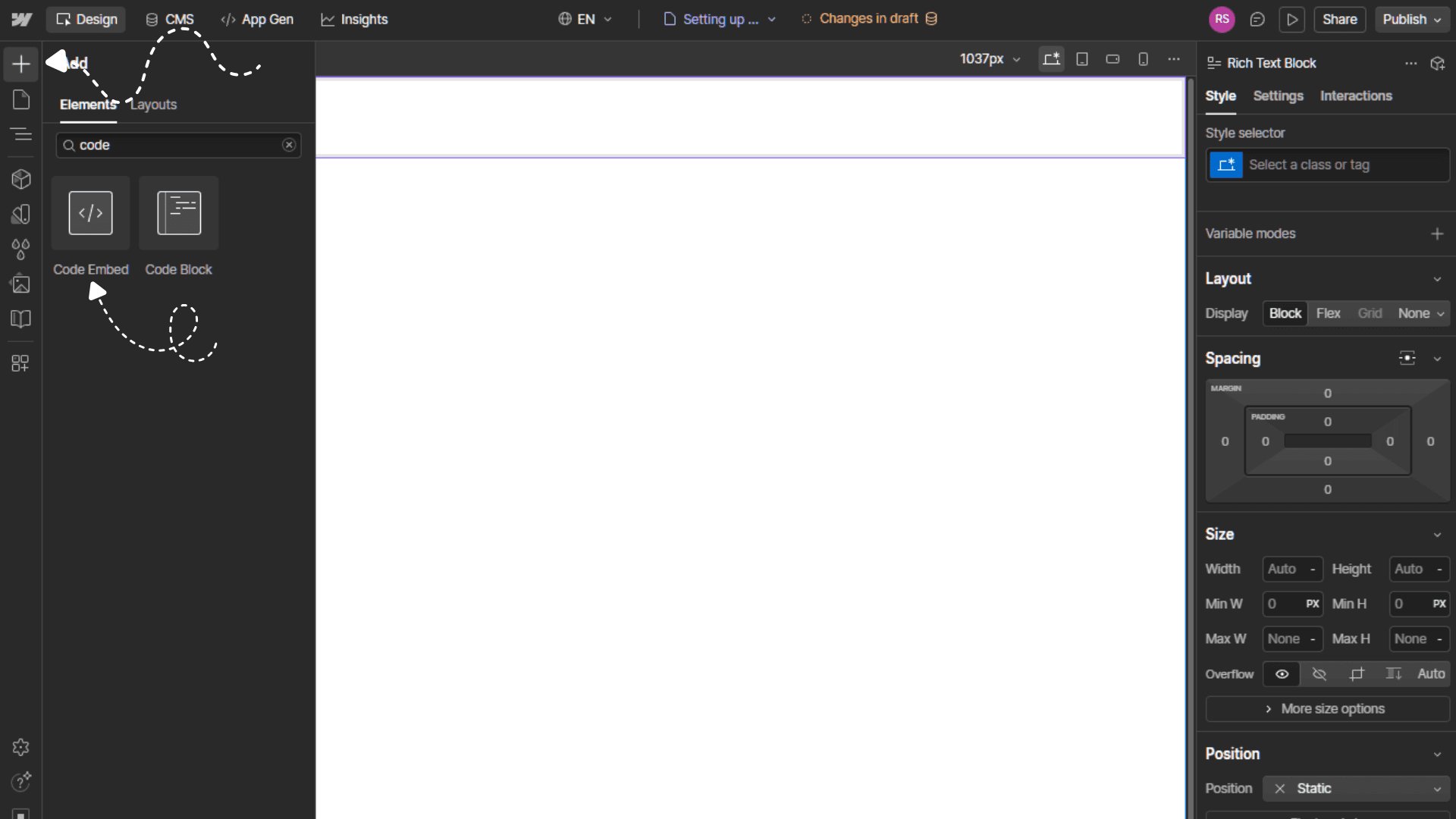
Add an Embed element
- Click “Add Elements” in the top left of the page
- Drag a Code Embed (HTML Embed) element into the template. Placement doesn’t affect rendering, so anywhere inside the body is fine.
- The HTML editor opens automatically.
Paste the embed wrapper
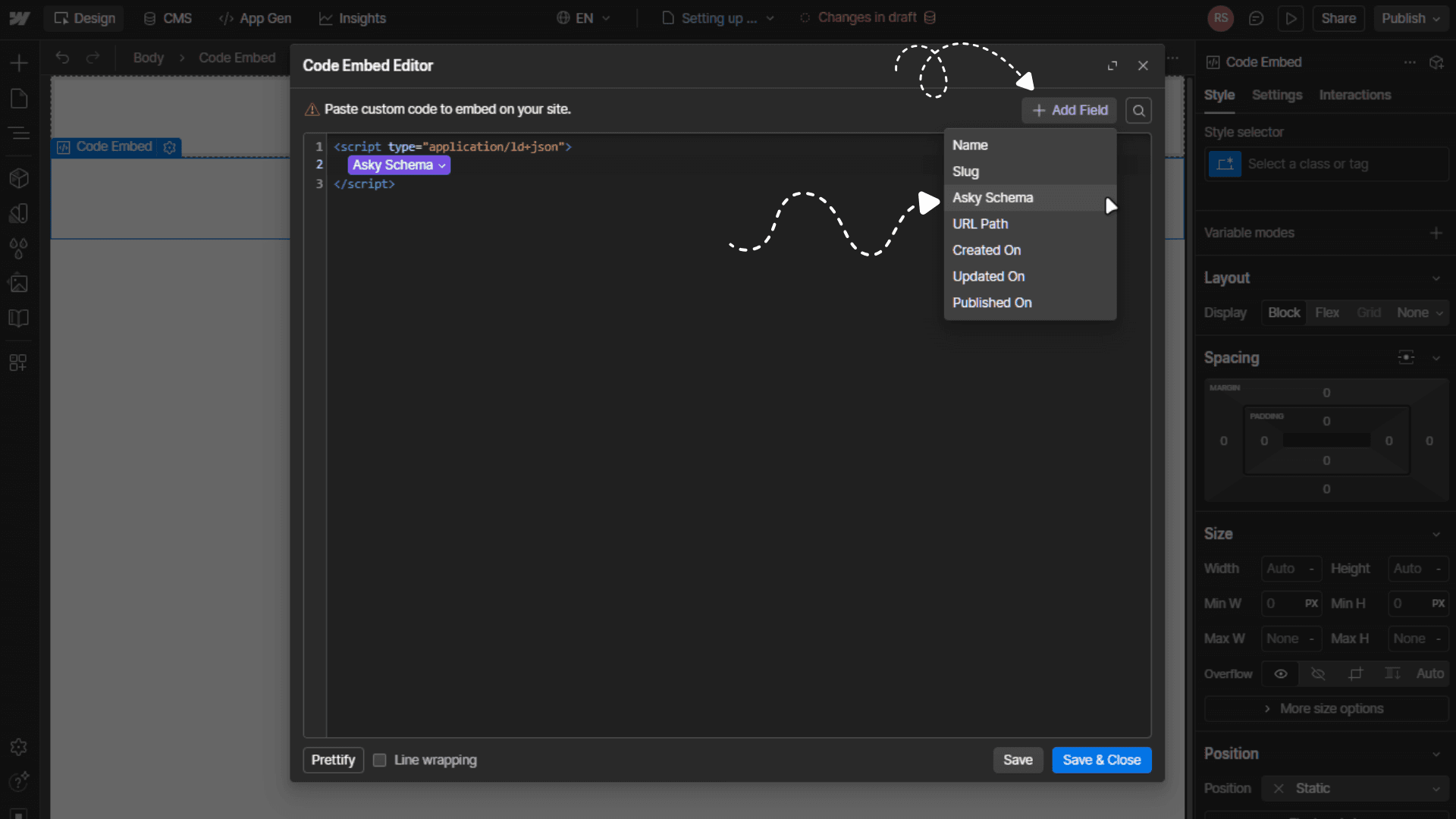
Paste exactly this into the Embed editor:
<script type="application/ld+json">
</script>
Then place your cursor on the empty line between the opening and closing <script> tags.
Bind the Asky Schema field
- With your cursor between the tags, click + Add Field in the Embed editor toolbar
- Select the Asky Schema field from the dropdown
- Webflow inserts a placeholder that pulls in each article’s schema automatically when the page loads.
- Click Save & Close
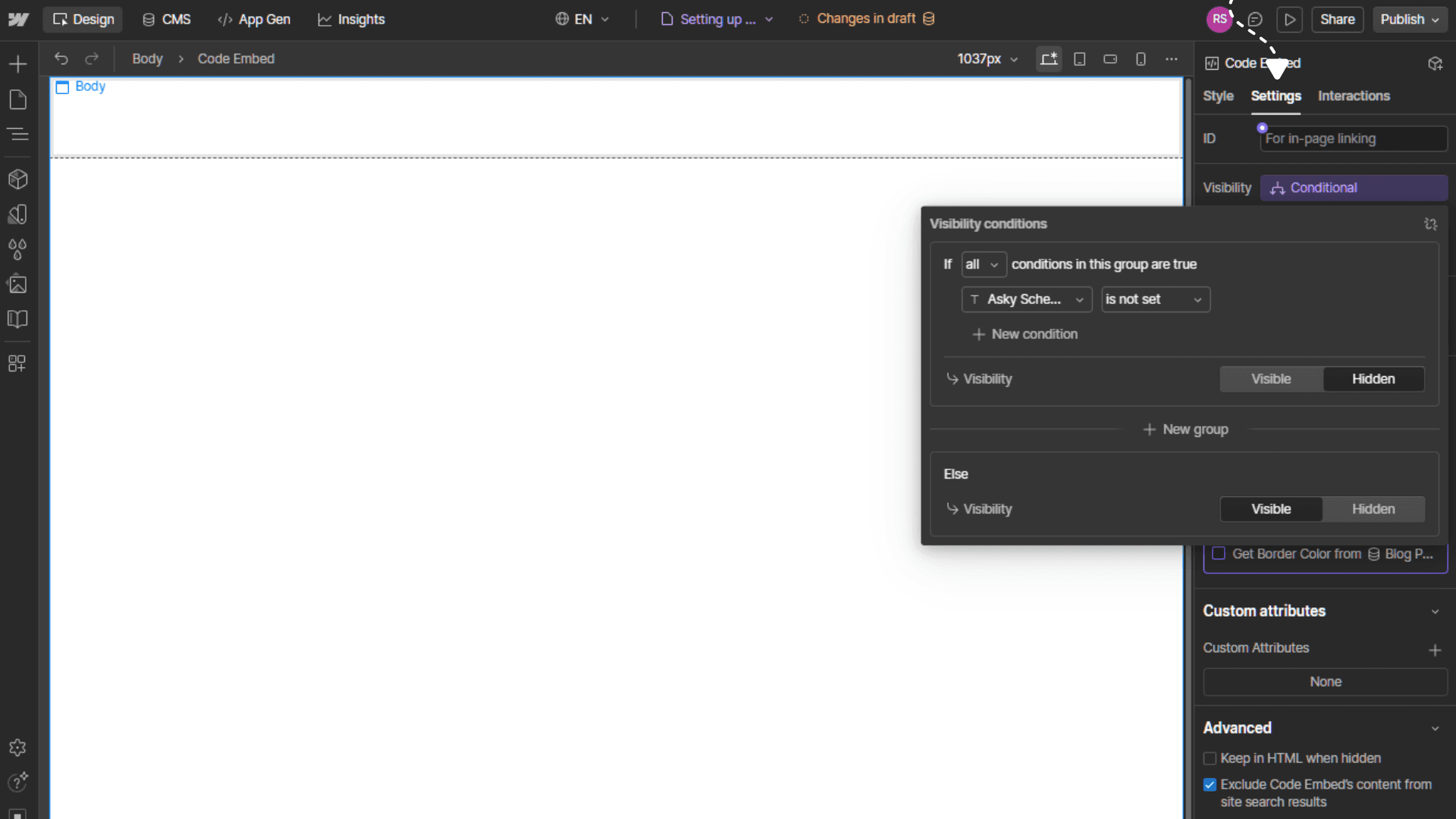
(Optional) Add conditional visibility
- With the Embed still selected, open the Element Settings panel (right sidebar)
- Under Conditional Visibility, add a condition: Asky Schema → is set
- This hides the Embed entirely on pages where the schema field is empty, preventing an empty
<script>tag from rendering.
This is not required and will not punish visibility if set.
Publish your Webflow site
- Click Publish in the top-right of the Designer
- Publish to your staging subdomain and/or your live domain
- This step makes both the new CMS field and the Embed live on the site
Verify it’s working
- Publish any content draft from Asky to this collection
- Open the published article’s live URL in a browser
- View the page source (Ctrl/Cmd + U) and search for
application/ld+json - You should see a populated
<script type="application/ld+json">block containing the article’s JSON-LD
Paste the live URL into Google’s Rich Results Test to confirm the schema parses cleanly and Google recognizes the types.
Troubleshooting
The <script> tag doesn’t appear on the live page:
- Open the field settings in Webflow and confirm the slug reads exactly
asky-schema - Re-publish your Webflow site after adding the field and the Embed. CMS fields and template changes only go live on publish.
- Publish a fresh draft from Asky to this collection, then reload the live page.
The <script> tag is there but empty:
- The draft you published didn’t have schema attached. Open the draft in Asky and review the Schema.org preview before publishing again.
- If you added conditional visibility, the empty tag is hidden automatically. No action needed.
Articles published before this setup don’t have schema:
- Complete the setup, then republish those drafts from the Content Library. New publishes include structured data automatically.
Publishing Content
From Content Library
To publish content to Webflow:
Select Content
- Go to Content Library in the sidebar
- Click on the content you want to publish
Verify Content Status
Ensure content is in “Ready” status. Edit if needed.
Click Publish
Click the Publish button.
Select Destination
Choose Webflow as the destination.
Configure Options
Set publishing options:
- Collection: Which collection to add to
- Status: Draft or Published
- Slug: URL slug for the item
- Additional fields: Map any custom fields
Confirm and Publish
Click Publish to send content to Webflow.
Tracking Status
After publishing:
- Content status changes to “Publishing”
- Status updates to “Published” when complete
- Any errors are displayed with details
Viewing on Webflow
Published content appears in your Webflow CMS:
- Log in to Webflow
- Go to your site’s CMS
- Find the content in the selected collection
Remember to publish your Webflow site after adding new CMS items to make them live.
Field Mapping
Default Mapping
Asky maps content fields to standard Webflow collection fields:
| Asky Field | Webflow Field |
|---|---|
| Title | Name |
| Body | Rich Text / Post Body |
| Slug | Slug |
| Summary | Excerpt / Summary |
| Schema.org JSON-LD | asky-schema (plain text, multi-line) |
Custom Fields
If your collection has custom fields:
- Configure mapping in connection settings
- Map Asky fields to your custom fields
- Save mapping configuration
Required Fields
Ensure your collection has required fields mapped:
- Name (title) is always required
- Slug is auto-generated if not provided
Managing the Connection
Viewing Status
The connection card shows:
- Connection status
- Connected Webflow account
- Selected site and collection
- Last publish time
Switching Sites
To publish to a different site:
- Go to Settings → Connections
- Find Webflow
- Click Change Site
- Select new site and collection
Switching Collections
To use a different collection:
- Access Webflow connection settings
- Update collection selection
- Re-map fields if needed
Disconnecting
To disconnect Webflow:
- Go to Settings → Connections
- Find Webflow
- Click Disconnect
- Confirm
Disconnecting:
- Stops ability to publish new content
- Does not delete content already in Webflow
- Can be reconnected anytime
Revoking Access
You can also revoke access from Webflow:
- Log in to Webflow
- Go to Account Settings → Integrations
- Find Asky and click Revoke Access
Troubleshooting
Connection Failed
“Authorization Failed”:
- Verify you’re logging into the correct Webflow account
- Check you have Editor or Admin access
- Try disconnecting and reconnecting
“No Sites Found”:
- Verify you have at least one site in Webflow
- Check that you have access to the site
- Ensure the site has CMS enabled
Publishing Fails
“Collection Not Found”:
- Verify collection still exists in Webflow
- Check collection hasn’t been renamed
- Reconnect and re-select collection
“Field Mapping Error”:
- Check required fields are mapped
- Verify field types match
- Update field mapping in settings
“Rate Limited”:
- Wait a few minutes and retry
- Avoid publishing many items rapidly
- Contact support if persistent
Content Issues
“Content Appears in CMS but Not Live”:
- Publish your Webflow site after adding CMS items
- CMS items need site publish to go live
“Formatting Lost”:
- Check Webflow collection field type (use Rich Text)
- Some complex formatting may need adjustment
- Review content in Webflow editor
Token Expired
If connection shows “Expired”:
- Click Reconnect
- Re-authorize with Webflow
- Re-select site and collection if prompted
Security & Privacy
Permissions Requested
Asky requests:
- Read site list
- Read CMS collections
- Write to CMS collections
We do not access:
- Your Webflow account settings
- Billing information
- Site code or design
- Assets beyond what we publish
Data Flow
- Content flows one direction: Asky → Webflow
- We don’t import Webflow content
- Published content exists independently in Webflow
Best Practices
- Test with draft: Publish as draft first to verify formatting
- Use appropriate collection: Match content type to collection
- Review in Webflow: Check published items before making live
- Map custom fields: Utilize Webflow’s custom fields for rich content
- Regular checks: Verify connection status periodically
Limitations
| Aspect | Limitation |
|---|---|
| Content types | Text and basic formatting |
| Images | Not automatically uploaded (manual add in Webflow) |
| References | Collection references not auto-linked |
| Bulk publish | One item at a time |
Next Steps
- Connect WordPress for additional publishing